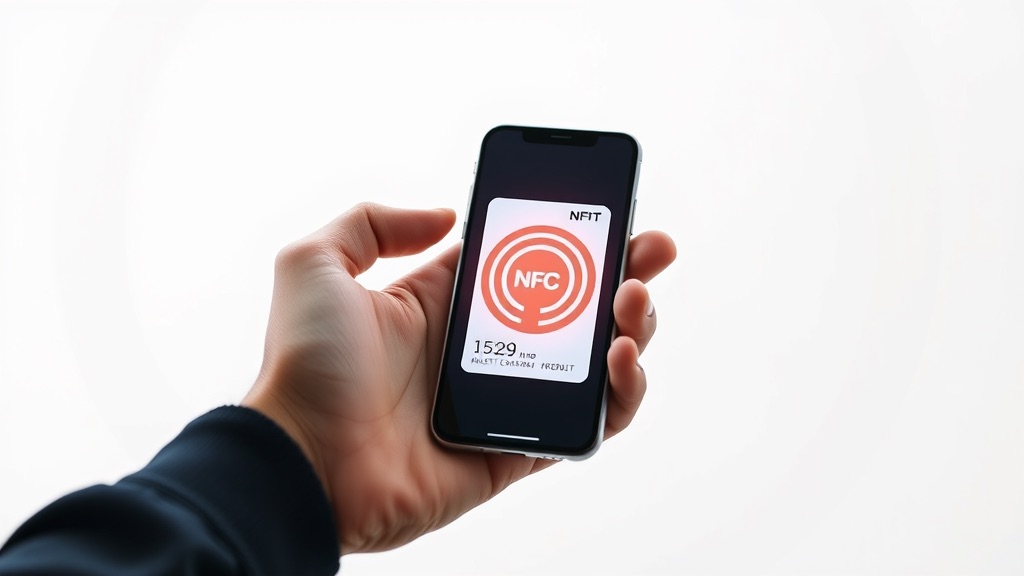
How to Add a Business Card to Apple Wallet (2026): Step-by-Step Tutorial


Works with Apple Wallet
The setup below runs on a BizBuzz card. You can have one before you finish reading.
Your iPhone is in your pocket every time you shake someone's hand. Your physical business card often isn't. Adding your business card to Apple Wallet fixes that permanently — this 2026 tutorial covers every step, from choosing the right platform to sharing your pass in under five seconds at a networking event.
Apple Wallet started as a container for boarding passes and transit cards. Over the past several years, a growing number of digital business card platforms have built on Apple's PassKit framework to issue .pkpass files that behave exactly like any other Wallet pass — persistent on your device, accessible from the lock screen, shareable by QR code, AirDrop, or NFC tap, and auto-updating when your contact information changes.
The setup takes about 15 minutes. Here's exactly how to do it.
What You Need Before You Start
- iPhone running iOS 16 or later (iOS 18 recommended)
- Apple ID signed into your device
- Account on a digital business card platform that supports Apple Wallet
- About 15 minutes
The technical side is handled entirely by your chosen platform — no certificates to generate, no JSON to write by hand.
Step 1: Choose a Compatible Platform
Not every digital business card service generates Apple Wallet .pkpass files. Confirmed platforms that do as of mid-2026:
| Platform | Free Wallet Pass? | Paid Plans Start At | NFC Card Option? |
|---|---|---|---|
| HiHello | Yes (free tier) | $6/mo (annual) | Optional add-on |
| Blinq | Yes (free tier) | ~$5.89/mo (annual) | Optional add-on |
| Wave | Yes (free tier) | $7/mo | Optional add-on |
| Popl | Yes (free tier) | $6.40/mo (annual) | ~$25 one-time |
| Mobilo | No (paid tiers only) | ~$4/user/mo (annual) | Included on paid plans |
| V1CE | 30-day trial | Varies | Premium cards from ~$25 |
Prices approximate as of mid-2026 — verify on each platform's pricing page before purchasing.
Beyond the marketing feature list, the things worth actually testing during a trial:
- Push update speed — edit your card title, then check the Wallet pass on a second device 10 minutes later. If it hasn't updated, the platform's push pipeline is broken.
- Certificate validity — a "signature invalid" warning in Wallet means the platform's Apple Developer certificate has expired or is malformed. Avoid that platform entirely.
- NFC broadcasting support — not all Apple Wallet pass types support NFC sharing. Confirm with the platform if this matters to you.
Step 2: Build Your Card Profile
Sign up for your chosen platform and fill in your profile. The Wallet pass is generated from this data:
Essentials (appear on the pass front):
- Full name (as you want it displayed)
- Job title and company
- Primary phone number
- Primary email address
- Profile photo — minimum 500×500px; Wallet compresses aggressively at lower resolutions
Recommended extras (appear on the pass back or profile page):
- Website URL
- LinkedIn profile
- Scheduling link (Calendly, Cal.com, etc.)
- Short bio or tagline
Design tip: keep the pass front to three or four fields. The pass format is narrow, and overloading the front makes everything harder to read and tap at a glance. Use the back of the pass for everything else.
Step 3: Find and Tap "Add to Apple Wallet"
In your platform dashboard or mobile app, look for a button labeled "Add to Apple Wallet" or "Save to Apple Wallet." Some platforms put it in a share menu; others surface it on the main profile screen.
This step must happen on your iPhone. The button triggers a .pkpass download that iOS intercepts and hands to the Wallet app. Tapping it on a Mac or Windows browser produces nothing useful.
What happens when you tap it on iPhone:
1. The platform packages your profile data into a signed .pkpass file.
2. iOS recognizes the file type and opens Wallet's "Add Pass" preview.
3. You see your name, title, photo, and color scheme.
4. Tap "Add" (top-right corner).
Your business card is now in Apple Wallet.
Step 4: Verify the Pass
Open the Wallet app and tap your new business card pass. Check every element:
- Name and title: correct spelling and formatting
- Photo: sharp, not blurry or oddly cropped
- Phone numbers: tap each one — should offer to call or send a message
- Email addresses: tap each — should open your email app
- Website/social links: tap each — should open the correct destination
- QR code (back of pass): tap the ⓘ icon to flip the pass; scan the QR and confirm it opens your profile
If anything looks wrong, return to your platform dashboard, make the correction, and the pass should refresh within 5–10 minutes via Apple's Push Notification Service.
Step 5: Customize the Pass Design
Most platforms let you adjust the visual appearance of your Wallet pass:
- Background color: your brand color or a neutral (dark backgrounds tend to stand out in the pass stack)
- Foreground color: text color — must contrast clearly with the background
- Label color: color for field labels like "Phone" and "Email" — slightly lighter than foreground usually works
- Logo: your company logo, displayed in the top-left of the pass header
- Profile photo: your headshot, displayed prominently in the pass body
Apple Wallet passes follow a fixed layout: header strip, primary field (largest type), secondary fields, auxiliary fields, and a back side. You're styling within those constraints — which is a feature, not a limitation. Recipients instantly recognize the format and know how to interact with it.
Test on different iPhones. Colors that look sharp on a dark-mode display can be illegible on a light-mode one, and you have no control over the recipient's settings.
Step 6: Understand NFC Sharing
Apple has progressively expanded NFC access for third-party apps and Wallet passes. With iOS 18, certain pass types can broadcast NFC data, enabling tap-to-share directly from Wallet.
Whether this works for your specific pass depends on the pass type your platform has configured — not all platforms enable NFC broadcasting. Check your platform's documentation before assuming tap-to-share is available.
If your pass supports NFC broadcasting:
1. Open the pass in Wallet.
2. Hold your iPhone near the other phone (back-to-back, within 1–4 cm).
3. Their phone receives a notification with your card URL.
4. They tap; your contact opens in their browser.
If your pass doesn't support NFC broadcasting: there's a cheap, practical workaround. Buy a pack of blank NFC stickers with NTAG 215 or NTAG 216 chips (widely available online for under $1 each). Program one with your card's URL using a free app like NFC Tools. Carry that sticker in your wallet or stick it to your phone case. The recipient's phone opens your card in a browser — nearly identical experience to pass-level NFC sharing, triggered by the sticker instead.
Step 7: Your Share Methods at a Glance
With the pass installed, you have four reliable ways to share:
| Method | When to Use | Notes |
|---|---|---|
| QR code display | Universal; works on any camera app | Tap the pass, then the QR icon — fills the screen |
| AirDrop | iPhone-to-iPhone; immediate | Share icon → AirDrop → select nearby device |
| NFC tap | When your pass type supports it | Open pass, hold phone near theirs |
| Share link | Async, over any messaging app | Most platforms generate a direct card URL |
For in-person networking, the full-screen QR code is the most reliable. NFC is slicker but requires both parties to position their phones correctly. AirDrop is fast when the other person's phone is visible nearby.
Step 8: Configure Lock Screen Quick Access
Apple Wallet is accessible from the lock screen, but a few tweaks make it significantly faster:
Double-press the side button. On most Face ID iPhones, this opens Wallet. Verify or configure: Settings → Wallet & Apple Pay → "Double-Click Side Button." From pocket to displayed QR code in under three seconds.
Lock Screen widget (iOS 16+). Press and hold your Lock Screen → "Customize" → add a Wallet widget. Your most-recently-used pass appears under the clock without unlocking.
Siri shortcut. Create a Shortcut that opens your pass: "Hey Siri, show my business card" → Open App: Wallet. Setup takes 90 seconds; saves 10 seconds at every networking moment. Worth it if you meet people frequently.
Step 9: Set Up Google Wallet for Android Contacts
Your Apple Wallet pass serves iPhone users. For contacts on Android, configure Google Wallet alongside it.
Most platforms that support Apple Wallet also support Google Wallet via the Google Wallet API. Look for "Save to Google Wallet" or "Add to Google Wallet" in your platform dashboard. The Google Wallet pass mirrors your Apple Wallet pass in content and uses the same push-update mechanism — just delivered through Android's wallet app instead of Apple's.
If your platform doesn't support Google Wallet, your card's QR code and link still work on Android — recipients just don't get the persistent wallet shelf on their lock screen.
Step 10: Maintain Your Pass
Here's the feature that makes Apple Wallet business cards categorically better than paper: when you update your platform profile, every installed pass updates automatically.
Change employers on a Tuesday. By Wednesday, everyone who has your Wallet pass sees your new title and company — no reprinting, no redistributing, no awkward "oh, that's my old card" moment. The contrast with a box of now-wrong paper cards sitting in the closet is stark.
The only ongoing maintenance: keep your platform profile current. The pass handles everything else.
Troubleshooting
"Add to Apple Wallet" button doesn't appear: You're on a desktop browser. Open the platform's app or mobile site on your iPhone.
Pass shows blank or default info: Required fields (name, at least one contact method) are empty in your profile. Fill them in; the pass will regenerate.
Pass not updating after a profile change: Pull down on the pass in Wallet to force a refresh. If still stale after 30 minutes, delete the pass and re-add it. Contact platform support if the issue persists.
"Signature invalid" warning in Wallet: The platform's Apple certificate has expired or is malformed. Don't use this pass; consider switching platforms.
Photo looks pixelated: Upload at least 500×500px (800×800px or higher is better). Regenerate the pass after uploading.
NFC sharing doesn't trigger: Confirm your pass type supports NFC broadcasting — not all do. The blank NFC sticker workaround described in Step 6 works reliably on all smartphones.
Not a Wallet Person?
Some professionals prefer to skip the Wallet pass entirely and share their card via QR code or deep link — it's less infrastructure to manage and works equally well for the actual exchange. If that sounds appealing, BizBuzz Cards is worth a look: an app-and-QR approach where anyone opens your card in a browser without installing anything, and every contact you exchange automatically goes into a searchable built-in CRM. It even has AI semantic search across your saved network — handy when you're trying to remember "that supply chain consultant from the Hamburg conference" six months later. No Wallet passes to configure; just a clean card URL you share anywhere.
Conclusion
Adding your business card to Apple Wallet is a 15-minute setup with years of payoff. The pass lives on recipients' devices, updates automatically when your information changes, and shares in seconds via QR code, AirDrop, or NFC tap — with no app required on the recipient's end.
The critical decisions: pick a platform with a valid certificate and reliable push updates (test this during your trial), customize the design so it looks intentional, add Google Wallet for Android contacts, and configure lock screen quick access. After that initial setup, the card takes care of itself.
Sources
Set this up on your own card
BizBuzz cards connect to Apple Wallet the same way described above. Create a card and wire it up — takes about as long as reading this did.
Create your card →Keep reading

What Is a Digital Business Card? The Complete 2026 Guide

Salesforce Digital Business Card Integration: Complete 2026 Setup Guide

How to Program an NFC Business Card: Step-by-Step Tutorial for 2026