NFC Business Card Complete Guide: Everything You Need to Know in 2026


Or skip the chip shopping
A BizBuzz card arrives with the right chip already encoded.
From the chip inside to the workflow around it — a complete, no-hype guide to NFC business cards in 2026.
The premise is simple: tap your card against someone's phone and your contact details transfer instantly. No app to download. No typing. No paper that ends up in a junk drawer three days later.
That's the pitch. The reality is slightly more layered — NFC works differently on iPhone than Android, the chip type matters, and the digital profile behind the card is where the real value lives. This guide covers all of it: how NFC technology works, which phones can read which cards, how to choose a platform, and how Apple Wallet and Google Wallet integration makes the whole thing significantly more useful.
What Is an NFC Business Card?
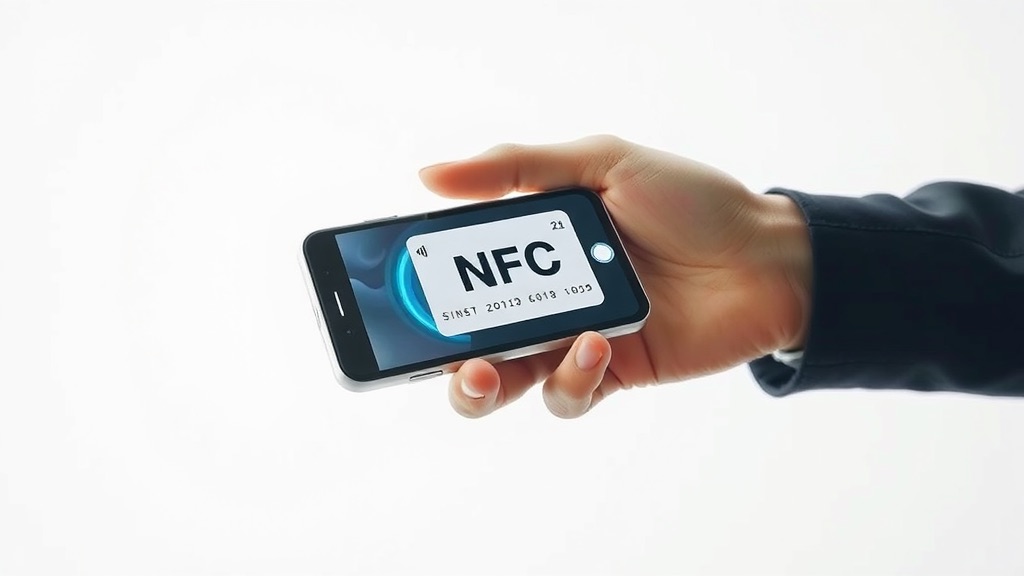
An NFC business card is a physical card — usually credit-card-sized, made of plastic, metal, or wood — containing a small passive NFC chip. When someone holds a compatible smartphone within a few centimeters of the card, their phone detects the chip and reads its contents: typically a URL that opens your digital business card profile.
The profile is where you control the experience. Name, title, contact details, social links, a short video intro, calendar booking — whatever you want recipients to see. Update it anytime and every card you've ever distributed automatically reflects the change. The chip doesn't need updating; it just stores a pointer to the profile.
The NFC chip is passive — no battery, no power source. It draws the tiny amount of energy it needs from the radio waves the smartphone emits. A single tap is enough.
How the Technology Works
The chip inside most NFC business cards is from NXP Semiconductors' NTAG series. Three variants are commonly used:
| Chip | User Memory | Best For |
|---|---|---|
| NTAG 213 | 144 bytes | Short URLs, basic redirects |
| NTAG 215 | 504 bytes | Most digital business cards |
| NTAG 216 | 888 bytes | Storing a full vCard directly on chip |
A URL like https://yourplatform.com/u/yourname is approximately 40–50 bytes — comfortably within NTAG 213's capacity. For anything involving more data (rich vCard, longer URLs, direct content storage), NTAG 215 is the industry sweet spot.
All NTAG chips operate at 13.56 MHz on the ISO/IEC 14443 standard — the same frequency as contactless payment cards. They're rated for 100,000 write cycles and 10 years of data retention. In practice, the physical card wears out long before the chip does.
NFC vs. QR Codes: The Real Difference
Both technologies work. Both are widely supported. The meaningful differences are experiential, not technical:
Speed: A tap takes about one second from contact to notification. A QR scan requires opening the camera, framing, waiting for recognition, tapping the notification. In a fast-moving conversation, those extra steps break the flow.
Ritual: Tapping a card against a phone feels intentional — a small, memorable moment. Scanning a QR code feels like a transaction. For professionals where first impressions matter, the ritual has value.
Visual cleanliness: A QR code on a business card looks like a QR code. An NFC card can be completely clean — a brushed metal surface with no visual noise.
The pragmatic recommendation: use both. Quality NFC cards include a QR code on the back for phones that don't read NFC automatically. The QR points to the same URL. No contact is lost.
iPhone Compatibility
Apple introduced NFC in the iPhone 6 (2014) for Apple Pay only. NFC tag reading arrived later, in stages:
- iPhone 6 through iPhone X (iOS 11–12): NFC present but requires opening a third-party NFC reader app before tapping. Most users won't bother. QR code is the practical fallback for this segment.
- iPhone XS, XR (iOS 13+): First iPhones with background NFC tag reading. When the screen is on and the phone is unlocked, tapping an NFC card produces a banner notification automatically. No app required.
- iPhone 11 through iPhone 16 (iOS 13+ / iOS 14+): Full background reading, including limited reading from the lock screen.
The practical threshold: iPhone XS running iOS 13 or later is where automatic NFC taps work reliably. The iPhone XS launched in 2018 — most active iPhone users are above this threshold in 2026.
iPhone NFC antenna location: top-back of the device, near the Apple logo. Tapping the bottom half of an iPhone against a card almost never works.
Android Compatibility
Android has supported NFC tag reading since Android 2.3 (2010). The experience on modern flagship Android is seamless and requires no app. Complications arise in the mid-range and budget segments:
- Samsung Galaxy (S, Z, and flagship A-series): NFC standard across the lineup.
- Google Pixel (all generations): NFC standard.
- OnePlus (5 and later): NFC standard. The 2015 OnePlus 2 was the notable exception.
- Xiaomi/Redmi: NFC on flagship Xiaomi models; often absent on budget Redmi devices. Regional variants of the same model name may differ.
- Motorola: Present on premium Edge and G-series; absent on budget models.
- Huawei (post-2019): NFC reading works; Google Wallet unavailable due to US trade restrictions.
Quick check: Settings → Connections → NFC. If the toggle is there, NFC works.
Setting Up Apple Wallet Integration
Adding your card to Apple Wallet eliminates the "I forgot my card" problem. Setup on major platforms (HiHello, Mobilo, Popl, Blinq) typically takes under two minutes:
- Open your digital card profile on your iPhone.
- Tap Add to Apple Wallet.
- Confirm in the Wallet prompt.
- Your card appears in Wallet alongside boarding passes and payment cards.
- To share: open Wallet, select your pass, tap your phone against the recipient's phone — or display the QR code on screen.
The pass updates automatically when you change your profile. The same push-update mechanism that alerts you to gate changes on a boarding pass pushes your new job title to every recipient's Wallet.
Once your card is in Wallet, you can share it via NFC, AirDrop, iMessage, or any iOS share intent. The physical card becomes optional.
Setting Up Google Wallet Integration
Google Wallet (using the Google Wallet API for pass creation) is the Android equivalent. Setup:
- Open your digital card profile on an Android device.
- Tap Save to Google Wallet.
- Confirm in the Wallet prompt.
- Enable Quick Access for lock-screen sharing.
The Google Wallet API offers more visual customization than Apple Wallet's pass format — richer hero images, multiple action buttons, structured metadata. For brand-conscious teams that want tight control over how their card looks in recipients' Wallets, this flexibility matters.
Quick Access on Android lets users share their card from the lock screen without unlocking the phone — useful at busy events where time is short.
Choosing a Platform
The card is commodity. The platform is where the value lives. Evaluate on:
Profile features: Video intros, calendar booking links, lead capture forms, custom domain, portfolio links. Map these against what you'll actually use.
Analytics: Tap counts, unique vs. repeat scans, geographic data, time-of-day patterns, link click-through rates. Most paid tiers include analytics.
Wallet integration: Both Apple Wallet and Google Wallet should be supported. Without both, you're leaving a large segment of contacts underserved.
CRM integration: For HubSpot, Salesforce, Pipedrive workflows. Verified HubSpot integrators include Popl, Mobilo, Wave Connect, and Spreadly.
Pricing: Entry-level cards run $5–20 for plastic, $20–60+ for metal. Platform subscriptions: $5–15/user/month for most teams. Blinq's Premium tier starts around $7.33/month; HiHello Professional around $6/month; Popl Pro+ at $14.99/month.
Data portability: Can you export your contacts if you switch? Choose platforms with vCard and CSV export. Some startups in this space have pivoted or shut down — portability matters.
Programming Your Own NFC Tags
You don't have to buy a pre-programmed card from a platform. Blank NFC tags (NTAG 215 stickers) are widely available from online retailers for under $1 each in packs.
Using the free NFC Tools app (iOS/Android), you can write any URL to a blank tag in under 30 seconds:
1. Open NFC Tools → Write → Add a record → URL
2. Enter your URL
3. Tap your phone to the blank tag
4. Done
This is how you'd use an app-first tool like BizBuzz Cards with a physical NFC surface. Set up your BizBuzz card (free tier supports 1 card; paid tiers unlock unlimited cards, publishable mini-sites, AI network search, and more), copy your unique profile link, then write it to a blank NFC sticker with NFC Tools. Stick it on a custom cardholder, your laptop, or a desk stand. Not glamorous, but it works — and BizBuzz's built-in contact-save CRM and AI semantic search across your network make every tap meaningfully trackable. You can even search your saved network in plain English months later: "find the fintech founder I met who mentioned their Series A."
What to Check Before You Buy
A quick checklist before committing to a platform:
- [ ] Does the card include a QR code as a fallback?
- [ ] Does the platform support both Apple Wallet and Google Wallet?
- [ ] Can you update your profile without replacing the card?
- [ ] Does the platform support lead capture forms?
- [ ] Is there an analytics dashboard?
- [ ] What CRM integrations are available?
- [ ] Can you export your contact data?
- [ ] What's the refund/replacement policy for the physical card?
Testing Before Key Events
Before any networking event, test across at least three devices:
- Modern iPhone (12 or later, iOS 17): Tap to upper-back. Notification should appear automatically.
- iPhone XS or 11 (iOS 13–15): Same test.
- Samsung Galaxy or Google Pixel (recent model): Tap to center-back. Browser should open directly.
- QR code (any camera): Frame the QR on the card back. URL should appear in 1–2 seconds.
If anything fails, you have time to fix it. Discovering a broken NFC card during a pitch is not the memory you want to leave.
Common Mistakes
Overcrowding your profile: Name, title, primary phone, primary email, 2–3 key links. Recipients spend 10–15 seconds on your profile. Optimize for that moment, not for comprehensiveness.
Skipping analytics setup: Configure the dashboard before your first event. You need a baseline to measure against.
Not setting up both Wallet options: Takes five minutes. Doubles your sharing options. Skip it and you're leaving capability unused.
Tapping the wrong phone position: iPhone reads from the top-back; most Androids from the center-back. When a tap fails, reposition before troubleshooting anything else.
The Bottom Line
NFC business cards are mature, commodity technology in 2026. The hardware is reliable. The chip is effectively permanent. The value driver is the platform — the profile, the analytics, the CRM integrations, and the Wallet passes that follow recipients onto their phones after the tap.
Choose a platform first. Worry about card material second. Test before you need it. Update your profile before every major event. And remember: the card is the handshake; the platform is the relationship infrastructure behind it.
Sources
- NXP NTAG 213/215/216 product page: https://www.nxp.com/products/rfid-nfc/nfc-hf/ntag/ntag-for-tags-labels/ntag-213-215-216-nfc-forum-type-2-tag-compliant-ic-with-144-504-888-bytes-user-memory:NTAG213_215_216
- Apple iOS background NFC tag reading (Core NFC docs): https://developer.apple.com/documentation/corenfc/adding-support-for-background-tag-reading
- NFC Tag Ify — iOS 13 NFC overview: https://nfctagify.com/blogs/news/everything-you-need-to-know-about-the-new-nfc-features-on-ios-13
- Google Wallet Passes API: https://developers.google.com/wallet/generic
- HiHello pricing: https://hihello.me/pricing
- Blinq pricing: https://blinq.me/pricing
- Popl pricing: https://popl.co/pages/plans
- Mobilo pricing: https://mobilocard.com/pricing
- MarketVeep HubSpot integration comparison: https://www.marketveep.com/blog/compare-digital-business-cards-that-integrate-with-hubspot
We already did this part
BizBuzz cards ship with the right chip and a hosted profile behind it — no sourcing NFC tags or writing URLs to them yourself.
Get a card →