How to Program an NFC Business Card: Step-by-Step Tutorial for 2026


Your free BizBuzz card
Build it in minutes and share anywhere — no app needed.
Programming your own NFC business card sounds technical. It takes about three minutes. You need a phone with NFC, a free app, and the URL you want the card to open. No special hardware, no soldering, no programming language.
This tutorial covers everything: choosing the right chip, formatting your URL correctly, writing to the chip with free apps, testing across iPhone and Android, locking the chip against tampering, pairing with Apple Wallet and Google Wallet, and configuring analytics. By the end, tapping your card on any modern phone opens your digital profile in under one second.
What You Need Before You Start
A blank or rewritable NFC tag. NFC business cards are typically credit-card-sized PVC cards with an embedded chip. You can buy blank cards from Amazon, AliExpress, or specialty NFC suppliers like GoToTags (a well-established US-based NFC tag supplier). Expect to pay roughly $1–3 per blank card in moderate quantities, or $15–50 for a fully custom-printed card with your branding. Most NFC business cards from digital card platforms arrive pre-programmed — buying blanks and programming yourself is the cheaper path if you need volume.
The chips to know (all NXP Semiconductors):
| Chip | User memory | Typical price | Best for |
|---|---|---|---|
| NTAG 213 | 144 bytes | ~$0.30/tag | Short URLs only |
| NTAG 215 | 504 bytes | ~$0.60/tag | Standard business card use |
| NTAG 216 | 888 bytes | ~$0.90/tag | Longer URLs; password protection |
For business cards, NTAG 215 is the standard choice — enough memory for any reasonable URL, wide compatibility, and a price that makes bulk orders inexpensive. All NTAG 21x chips are rewritable unless you deliberately lock them.
An NFC-enabled smartphone. On iPhone: NFC tag reading requires iPhone 7 or later (the iPhone 6 had NFC hardware, but only for Apple Pay — general NFC tag reading wasn't available until the iPhone 7 with iOS 11). iOS 14 added automatic background NFC tag reading on iPhone XS and later models; iPhone 7 and 8 require the NFC reader mode in Control Center or a dedicated app. On Android: NFC tag reading has been available on flagship devices since roughly 2012; virtually every Android flagship from the last several years includes NFC.
An NFC writer app. Two solid free options:
- NFC Tools (by wakdev): Available for Android and iOS; winner of the NFC Forum Innovation Award; the most widely used NFC read/write app for personal use. The free version handles all business card use cases. The Pro version (around $3–5) adds batch writing and task automation, useful for programming many cards.
- NFC TagWriter by NXP: Official app from the chip manufacturer; available for both Android and iOS; robust support for NXP's full NTAG chip family and advanced features like password protection and UID mirroring.
Your destination URL. For most business card use cases, this is a link to your digital card profile — whether that's on a platform like BizBuzz Cards, HiHello, Blinq, or your own custom domain. If your digital profile lives at BizBuzz Cards, you already have a shareable deep-link: just copy your profile URL from the app and use it as your NFC destination. Write it to any NTAG 215 blank card in thirty seconds and you have a tap-to-share business card for roughly $1 per card — no platform vendor card purchase required.
Step 1: Choose Your Record Type
NFC chips store different record types, each handled differently by phones receiving the tap.
URL/URI record: The chip stores a web address. When tapped, the phone opens that URL in the default browser. This is the recommended option for business cards because:
- You can update what the URL points to (by editing your platform profile) without ever rewriting the chip
- It supports analytics, push updates, and Apple/Google Wallet integration
- It works with a simple internet connection on any modern phone
vCard record: The chip stores contact data directly (name, phone, email, etc.). When tapped, the phone offers to add the contact immediately — no internet required. The drawback: every card must be physically rewritten if you change your phone number, email, or employer.
Smart Poster: A composite record combining URL plus metadata. Less common; more relevant for marketing displays than personal business cards.
Recommendation: Use a URL record in almost every case. It's flexible, updatable, and supports the richer analytics and CRM integration that makes digital cards genuinely useful over time.
Step 2: Format Your URL Correctly
The URL you write to the chip matters more than people realize.
Use HTTPS, not HTTP. Modern browsers block or warn on HTTP links. iOS Safari may refuse to open HTTP URLs from NFC taps entirely. Always use the https:// prefix.
Keep it short. Shorter URLs are more reliable to write (fewer bytes consumed), produce cleaner backup QR codes, and feel more professional if a recipient inspects the URL manually. Use a custom subdomain (card.yourname.com) or a short slug (yoursite.com/c) rather than a long parameterized URL.
Test the URL first. Paste it in a desktop browser and confirm it loads correctly. Then test it on a mobile phone and verify it renders well on a small screen. Writing a typo to 50 cards is an avoidable disaster.
Avoid third-party URL shorteners for anything important. Services like bit.ly can change policy or shut down, permanently breaking every card that points to them. Use your own domain whenever possible.
Step 3: Install Your NFC Writer App
Install NFC Tools from the App Store (iOS) or Play Store (Android). The free version handles all standard business card programming. Open it and familiarize yourself with four tabs: Read, Write, Other, Tasks.
Step 4: Create Your Write Record
In NFC Tools:
- Tap Write
- Tap Add a record
- Select URL/URI
- Enter your URL exactly, including the
https://prefix - Tap OK — the record is queued in the write list
You can add multiple records to one chip (a URL plus a contact record, for instance), but single-record cards are more reliable and cleaner to work with. Keep it simple.
Step 5: Write to the Chip
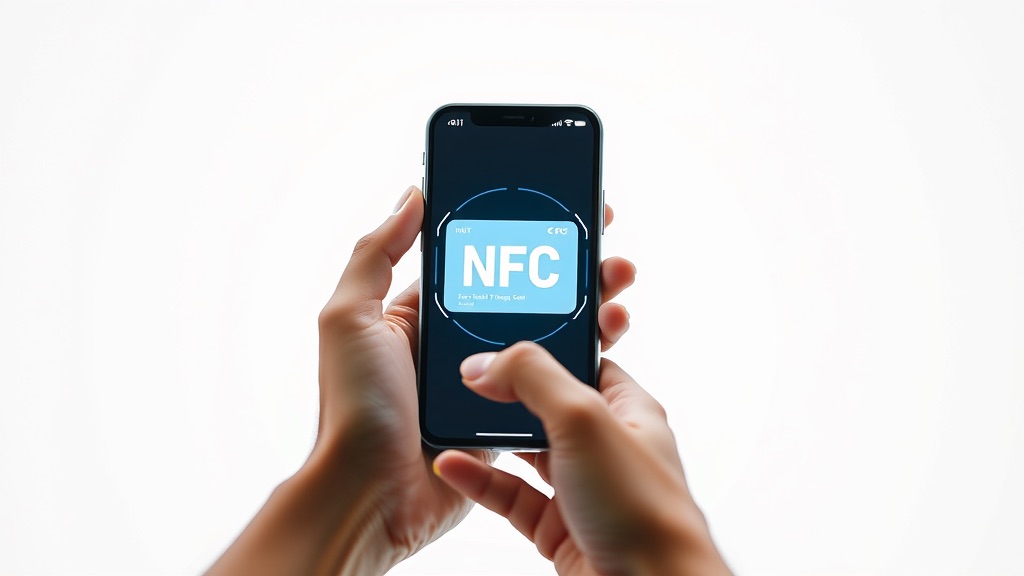
With the record queued, tap Write. NFC Tools prompts you to bring your phone near the tag.
Hold your phone flat against the card:
- iPhone: NFC antenna is near the top edge of the phone; align the top of your phone with the chip location on the card
- Android: NFC antenna is typically center-back; hold the center of your phone against the card (check your specific model's documentation if uncertain)
A confirmation tone or vibration indicates success. NFC Tools shows "Write complete" with the bytes written. If the write fails, reposition and try again — finding the sweet spot usually takes one or two attempts and is a one-time calibration.
Step 6: Test on Both Platforms
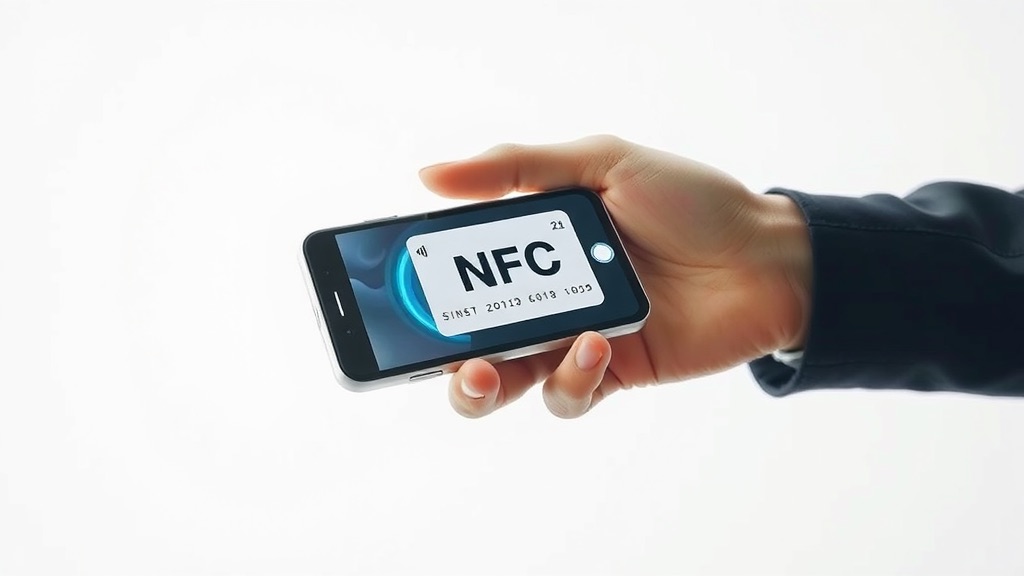
Test on your own phone first. With the phone on the lock screen (don't unlock it — simulate the recipient's experience), tap the card against your phone. A system notification should appear with the URL. Tap the notification and your profile should load in the browser.
Then test on a different phone. If you wrote with an iPhone, test with an Android phone, and vice versa. NFC behavior varies by platform.
Common test failures and fixes:
- No response at all: NFC may be disabled in settings. On Android, check Settings → Connections → NFC. On older iPhone models (7, 8, X), NFC tag reading requires either the Control Center NFC reader or an app like NFC Tools; it's not automatic.
- Notification appears but URL doesn't load: Internet connectivity issue; test on Wi-Fi.
- iOS shows a generic notification or nothing: The device may be older than iPhone 7, or the chip isn't recognized. NTAG 21x chips have broad iOS compatibility; off-brand chips have higher failure rates.
Step 7: Lock the Chip (Optional)
If you're confident the data is correct and don't plan to rewrite the chip: in NFC Tools, go to Other → Lock tag, then tap your phone against the chip. The lock is applied in under a second.
Once locked, the chip cannot be rewritten under any circumstances. Locking is:
- Recommended for production cards: Prevents anyone with physical access from rewriting your chip to point somewhere else — a real security consideration if you hand out cards widely
- Not necessary if using a URL approach: Since you update your profile on your platform rather than rewriting the chip, the URL itself doesn't need to change
- Irreversible: There is no unlock. If you lock a chip with a typo in the URL, that chip is permanently broken
For personal use with URL-based cards: locking is a nice-to-have security measure. For high-volume production: lock before distributing.
Step 8: Add Apple Wallet Integration
After programming your physical NFC card, also add your card to Apple Wallet for a digital backup that's always with you.
If your digital card platform supports Apple Wallet (most do — HiHello, Mobilo, Popl, Blinq, and others), open your profile page in Safari on an iPhone and tap "Add to Apple Wallet." iOS prompts you to add the .pkpass file generated by the platform via Apple's PassKit framework.
Once added, your card appears in Apple Wallet. From there you can:
- Share via AirDrop (iPhone to iPhone)
- Display the QR code for any phone to scan
- Use NFC broadcasting (on platforms that support it) to tap your iPhone against another phone
The Apple Wallet pass supports push updates — change your title on your platform's dashboard and the installed pass refreshes automatically.
Step 9: Add Google Wallet Integration
The Android parallel: from your card profile on an Android device, tap "Save to Google Wallet." The pass appears in Google Wallet, shareable via NFC or QR.
On most Android phones, configure Google Wallet's Quick Access feature (Settings in the Wallet app) so a double-press of the power button opens Wallet directly. Sharing your digital card then takes under three seconds from any context — faster than any physical card exchange.
This gives you three sharing channels: the NFC-programmed physical card, the Google Wallet pass (Android), and the Apple Wallet pass (iPhone) — covering virtually every phone and every context you'll encounter.
Step 10: Configure Analytics and CRM Integration
If your platform supports analytics — and most do — enable them. After programming your card:
- Total and unique taps per card
- Approximate time and location of taps
- Which links on your profile were clicked
- Contact save conversion rate (how many tappers actually saved your contact)
After a networking event, this data answers the question that matters: of the cards I tapped to people's phones, how many resulted in someone actually saving my contact? The answer is usually more sobering than expected, and knowing it is the first step to improving the sharing moment.
For CRM integration: when someone taps your card and submits a follow-up form on your profile, their contact is automatically created in HubSpot, Salesforce, Pipedrive, or your CRM of choice, with source tagged as "NFC tap." This closes the loop from physical introduction to digital pipeline in one frictionless step.
Troubleshooting Common Issues
"Card writes successfully but recipients say nothing happens."
The recipient's NFC is probably disabled. On Android: Settings → Connections → NFC. On iPhone 7/8/X: Control Center → NFC Tag Reader. On iPhone XS and later with iOS 14+: background tag reading should be automatic.
"The card worked last week and now it doesn't."
Test by reading the card with NFC Tools. If the read fails, the chip is likely damaged (strong magnetic fields, physical bending, or extreme heat can damage the antenna). Chips are inexpensive — replace it.
"I want to update the URL on a locked card."
You can't. Locked chips cannot be rewritten. This is why the URL-based approach is recommended: update your destination (the profile on your platform) and all cards in circulation work correctly without needing to be touched.
"My Apple Wallet pass shows old information."
Swipe down on the pass in Apple Wallet to force a manual refresh. If the issue persists, delete the pass and re-add it from your platform's dashboard.
"My iPhone SE doesn't read the card."
iPhone SE (1st generation, 2016) has NFC for Apple Pay only — it does not support NFC tag reading. iPhone SE 2nd generation (2020) and later support NFC tag reading. Always verify the specific SE model.
Advanced: Writing vCards Directly
For environments where internet connectivity isn't reliable — trade show floors with spotty cell service, remote field work — you can write a full vCard directly to the chip instead of a URL.
In NFC Tools, choose record type Contact, fill in your name, phone, email, and other fields. NTAG 215 (504 bytes) or NTAG 216 (888 bytes) holds a reasonably complete vCard.
When recipients tap the card, their phone offers to save the contact directly — no browser, no internet. The tradeoff: no analytics, no updates without rewriting every card, and no link to your full digital profile. Use vCard storage only for specific offline use cases; URL is better for general networking.
Bulk Programming for Teams or Events
For programming many chips efficiently:
NFC Tools Pro ($3–5) supports sequential batch operations — configure your record once and tap chips in sequence; each one writes automatically without re-entering data.
For volumes above 200, a desktop USB NFC encoder is faster and more consistent than a phone. For volumes above 500 with custom-printed cards, commercial card printers with built-in NFC encoding capability (Zebra's enterprise card printer line, for example) print and encode in a single pass.
The three-minute skill this tutorial teaches scales directly to enterprise card programs. Same chips, same software, same process — just executed more systematically at higher volume.
Conclusion
Programming an NFC business card is a five-minute skill that opens a significantly larger toolkit: custom card designs, branded team cards, event badge integration, and lead capture campaigns that start with a physical tap. The chip technology is cheap, reliable, and compatible with every modern phone. The barrier isn't technical — it's simply knowing which app to use and which URL to write.
Once you've done it once, handing someone a card that opens your full digital profile the moment they tap it will feel like a superpower. And handing out a paper card will feel like sending a fax.
Sources
- NXP NTAG 213/215/216 product page: https://www.nxp.com/products/NTAG213_215_216
- NXP NTAG 424 DNA product page: https://www.nxp.com/products/rfid-nfc/nfc-hf/ntag-for-tags-and-labels/ntag-424-dna-424-dna-tagtamper-advanced-security-and-privacy-for-trusted-iot-applications:NTAG424DNA
- NFC Tools by wakdev (Android): https://www.wakdev.com/en/apps/nfc-tools-android.html
- NFC Tools by wakdev (iOS): https://www.wakdev.com/en/apps/nfc-tools-ios.html
- NFC TagWriter by NXP on Google Play: https://play.google.com/store/apps/details?id=com.nxp.nfc.tagwriter
- GoToTags NFC supplier: https://gototags.com/
- Apple PassKit developer documentation: https://developer.apple.com/wallet/
- BizBuzz Cards: https://bizbuzz.cards
Make one of your own
Build a digital business card in a few minutes and share it anywhere — no app required on the other end.
Create free card →