Apple Wallet Business Card Setup: The Complete 2026 Guide


Works with Apple Wallet
The setup below runs on a BizBuzz card. You can have one before you finish reading.
Apple Wallet has quietly become one of the most underused surfaces on the iPhone for professional networking — this complete 2026 guide covers everything from choosing a platform to running a setup that works for years without attention.
The pitch is simple: your iPhone is always in your pocket; Wallet is always a double-tap away; your business card should be both of those things. Apple's PassKit framework makes it possible, and a healthy ecosystem of digital business card platforms has built on top of it to generate professional-grade .pkpass files in minutes.
But "supports Apple Wallet" on a platform's marketing page doesn't tell you whether passes actually update reliably, whether the pass is signed with a current Apple certificate, or whether NFC sharing works in practice. This guide covers the complete picture — and the details that separate a Wallet card that works as advertised from one that quietly drifts out of date.
What an Apple Wallet Business Card Actually Is
An Apple Wallet business card is a .pkpass file installed in the Wallet app on an iPhone. A .pkpass is a ZIP archive containing:
-
pass.json— your contact data, color scheme, field layout, and awebServiceURLthat iOS calls to receive updates - Images — your profile photo, company logo, and pass icon at standard and @2x (Retina) resolutions
-
manifest.json— cryptographic hashes of every file in the archive -
signature— a cryptographic signature from the issuing platform's Apple-issued developer certificate
The signature is how iOS decides whether to trust the pass. The webServiceURL is how push updates work: when you change your profile on the dashboard, the platform notifies Apple's push servers, which tell iOS to fetch the updated pass from that URL. You change your title on a web form; every recipient's pass updates within minutes — automatically, silently.
You never touch any of this directly. But understanding the structure explains most common troubleshooting scenarios.
Why Apple Wallet Over Other Sharing Methods
Before the setup walkthrough, a brief case for why Wallet integration is worth the effort versus just texting a link:
Persistent discovery. A link sent via text gets buried under hundreds of messages. A Wallet pass stays on the recipient's device until they deliberately delete it — which most users never do. Your card can realistically sit in someone's Wallet for years.
Lock screen presence. iOS surfaces passes on the lock screen via proximity triggers (geofencing near your office address). Configured correctly, your pass can appear on a contact's lock screen when they walk near your building — without any action from either of you.
Zero friction for recipients. Wallet is pre-installed on every iPhone. Recipients tap "Add" once; no app download, no account registration, no QR code to scan and forget about.
Automatic updates. Every recipient always has your current contact information. Change roles, change numbers, add a website — it propagates everywhere automatically.
The tradeoff: you need a platform with a well-implemented Wallet integration, which not every platform has despite claiming it.
Choosing the Right Platform: Three Tests That Reveal Quality
The key differentiator between platforms isn't the marketing — it's the engineering quality of their Wallet implementation.
Test 1: Push Update Latency
Install your pass on two devices. Edit your card title on the platform dashboard. Check the second device after ten minutes. A quality implementation reflects the change. A broken implementation doesn't — which means your old employer or title can be visible in recipients' Wallets for months or years after you change jobs.
This single test reveals more about a platform's Wallet quality than any feature comparison table.
Test 2: Certificate Validity
Open the added pass in Wallet. If you see a "signature invalid" or "signature verification failed" warning, the platform's Apple Developer certificate has expired or is malformed. Contacts who receive this pass will see the same warning. Do not use that platform.
Test 3: NFC Broadcasting
With iOS 18, certain pass types can broadcast NFC data from Wallet directly. Not all platforms configure their pass types to support this. If tap-to-share from the Wallet pass is important to you, test it explicitly before committing.
Verified Platforms and Pricing (Mid-2026)
| Platform | Free Tier | Individual Paid | Team Plans | Key Differentiator |
|---|---|---|---|---|
| HiHello | 4 cards + Wallet | $6/mo (annual) | $5/user/mo (annual) | Best all-around quality |
| Blinq | 2 cards + Wallet | ~$5.89/mo (annual) | $4.99/user/mo (annual) | Best free-tier Wallet feature set |
| Wave | Yes + Wallet | $7/mo | $5/user/mo | SOC 2 Type 2 certified |
| Popl | Yes + Wallet | $6.40/mo (annual) | $5/user/mo | Widest NFC hardware lineup |
| Mobilo | None | ~$4/user/mo (annual) | Same | Deepest CRM integrations |
| V1CE | 30-day trial | Varies | $197/yr (teams) | Best premium hardware |
Verify current pricing on each platform's pricing page — these figures are approximate for mid-2026.
Building Your Profile
Your Wallet pass is generated from your platform profile. The quality of the pass reflects the completeness of the profile.
Front-of-pass essentials (visible without tapping the pass):
- Full name
- Job title and company name
- Primary phone number
- Primary email address
- Profile photo — minimum 500×500px; ideally 800×800px or larger
Back-of-pass content (revealed by tapping the ⓘ icon):
- Additional contact methods
- Website and social links
- Scheduling link (Calendly, Cal.com, etc.)
- Short bio or tagline
Profile completeness tip: fill in every field that's genuinely useful for the contacts you want to stay in touch with; deliberately omit the rest. A cluttered back-of-pass dilutes the links that actually matter and makes the pass harder to navigate at a glance.
Customizing the Pass Design
Apple Wallet passes follow a fixed layout grammar. You're styling within constraints, not designing a blank canvas. What you can control:
Color fields (defined as hex or RGB values in the pass configuration):
- backgroundColor: the base color of the pass
- foregroundColor: text color for field values
- labelColor: text color for field labels ("Phone", "Email", etc.)
Visual elements:
- Company logo (top-left of header)
- Profile photo (displayed prominently in the pass body)
- Specific fields shown on front vs. back
Layout note: The pass has a header strip, a primary field (largest type — usually your name), secondary fields (smaller grid — title, company, phone), auxiliary fields (even smaller), and a back side. Every platform uses this same Apple-defined grammar; the differences are in styling, not structure.
Practical color advice: dark backgrounds with light text generally look sharper in the Wallet pass stack than light backgrounds with dark text. Test your color scheme on both light and dark iPhone display modes before finalizing — what looks great in one can be unreadable in the other.
Adding the Pass to Wallet
This step must happen on your iPhone — the process doesn't work on desktop.
- Open your platform's app or mobile website on your iPhone.
- Tap "Add to Apple Wallet" (or equivalent — some platforms label it "Save to Wallet" or put it in a share submenu).
- iOS opens the Wallet preview showing your pass design.
- Verify name, title, photo, and colors look correct.
- Tap "Add" in the top-right corner.
The pass installs instantly. Open Wallet, tap the new card, and verify every field: clickable phone numbers, clickable email addresses, working links, and — by tapping the ⓘ icon to flip the pass — a QR code on the back that scans to your correct profile URL.
NFC Sharing: The Full Picture
NFC sharing from an Apple Wallet business card comes in two distinct forms. Most guides conflate them, which causes confusion.
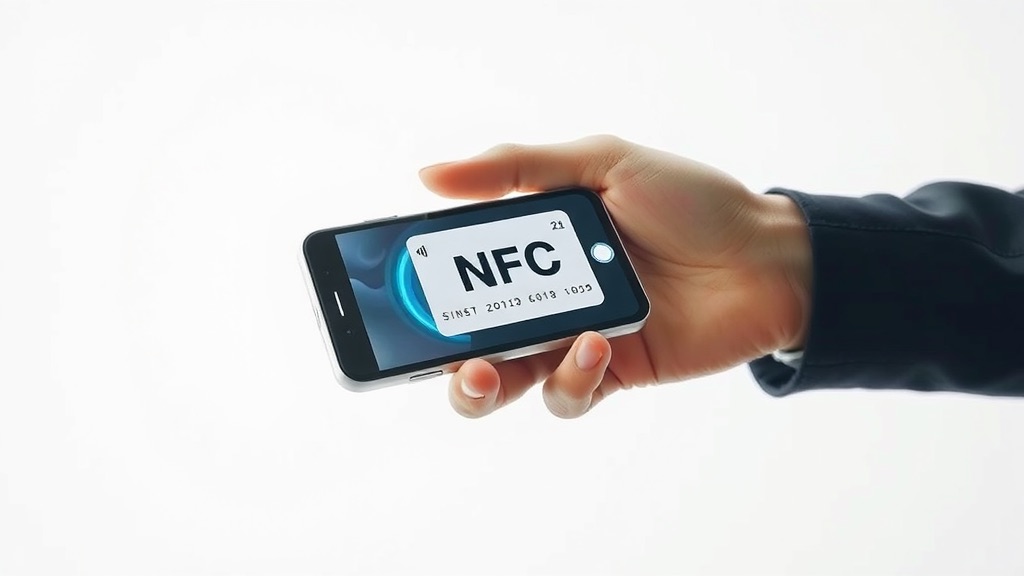
Form 1: Pass-level NFC broadcasting. iOS 18 expanded NFC access for third-party Wallet passes. Some pass types issued by some platforms can broadcast an NFC URL when the pass is open in Wallet. You hold your iPhone near the other person's phone; their phone receives a notification with your card URL. No hardware beyond the two phones required. Elegant — but not universally available. Confirm with your platform whether their pass type supports this before assuming it works.
Form 2: Hardware NFC chip. A physical chip embedded in a card or sticker that, when tapped, opens your card's URL in a browser. This is what V1CE, Popl, Mobilo, HiHello, and Blinq sell as "NFC business cards." These work entirely independently of the Wallet app — they don't require Wallet to be open, or even installed.
You can use both approaches together. The hardware NFC card handles in-person tap exchanges; the Wallet pass provides persistent digital presence and share-from-phone flexibility.
DIY NFC option: If your Wallet pass doesn't support NFC broadcasting and you don't want to pay for a dedicated NFC card, blank NTAG 215 stickers (under $1 each) programmed with your card URL via the free NFC Tools app give you the same tap experience at minimal cost.
Push Updates: The Underrated Core Feature
Every time you edit your platform profile, the system:
- Regenerates the pass data with your new information
- Sends an Apple Push Notification to every device where the pass is installed
- iOS fetches the updated pass from the platform's
webServiceURL - The pass silently updates in Wallet within minutes
Recipients see no notification. Their pass simply has your new information next time they look.
The practical implication: change jobs on Monday, and by Tuesday morning every recipient's Wallet pass shows your new title and employer. Paper business card equivalent: reprint your entire inventory and redistribute them to everyone who has an old card. The asymmetry is enormous — and it's why digital business cards are categorically superior for anyone whose professional information changes more often than their stationery budget.
Adding Google Wallet for Android Contacts
Your Apple Wallet pass serves iPhone users. For Android contacts, most platforms support Google Wallet via the Google Wallet API alongside Apple Wallet.
Look for "Save to Google Wallet" or "Add to Google Wallet" in your platform dashboard. The Google Wallet pass mirrors your Apple Wallet pass in content and uses the same push-update mechanism, delivered through Android's wallet app. Android users tap a link on their phone to install the pass; after that, it surfaces in Google Wallet like any transit or event ticket.
If your platform doesn't support Google Wallet, your card's QR code and direct link still work on Android — recipients just don't get the persistent wallet shelf. For international teams or contexts where Android is dominant, confirm Google Wallet support before committing to a platform.
Quick-Access Configuration for Networkers
A few tweaks that meaningfully reduce the time from "I want to share my card" to "card is shared":
Side button double-press: Opens Wallet by default on Face ID iPhones. Verify: Settings → Wallet & Apple Pay → "Double-Click Side Button." Two taps from pocket to displayed QR code.
Lock Screen widget (iOS 16+): Press and hold the lock screen → "Customize" → add Wallet widget. Most-recently-used pass appears without unlocking.
Siri shortcut: "Hey Siri, show my business card" → opens Wallet to the pass. Create in the Shortcuts app in about 90 seconds. Useful at conferences when your hands are full.
For professionals who network heavily, the combination of these three tweaks makes the difference between a card that feels effortless and one that requires fumbling.
What Wallet Passes Don't Do: The Contact-Memory Gap
Apple Wallet passes are excellent at distribution. They are not a contact management system. The pass goes out to a recipient — but your platform's analytics dashboard may only show aggregate scan counts, not a log of which specific person has your card and what you discussed when you met them.
For professionals who meet many people and need to find them later — by company, role, conference, or something memorable about the conversation — that gap matters. Some platforms integrate with HubSpot or Salesforce to capture this at the lead level. Others, like BizBuzz Cards, build the CRM directly into the card app itself: every exchange is saved to a private, searchable database with AI semantic search, so you can search "product manager, sustainability, met in Copenhagen" and find the right person years later. BizBuzz is a QR-and-link platform rather than a Wallet-pass platform — a genuine architectural alternative, not just a feature add-on, worth knowing about if contact memory is the problem you're actually trying to solve.
Maintaining Your Setup Long-Term
Ongoing maintenance is minimal. Update your platform profile when your information changes. The pass handles distribution automatically.
Annual checks worth running:
- Verify your platform's Apple certificate is still valid (install the pass fresh on a test device; confirm no "signature invalid" warning)
- Review your profile for stale links, old phone numbers, or an outdated photo
- Check your platform's analytics: tap counts, link clicks, conversion rate. A sudden drop often signals something broken in the pass distribution pipeline
When you change jobs: update your profile immediately. Wallet pass updates propagate within minutes. Completing this within 24 hours of a role change means no recipient ever sees your old employer — a small professional detail that's worth getting right.
Conclusion
Apple Wallet business card setup is genuinely straightforward once you choose a platform with a quality implementation. The 15-minute initial configuration creates infrastructure that runs itself: automatic updates, lock screen presence, multiple share methods, and persistent presence on recipients' devices.
The criteria that matter: valid Apple certificate, reliable push updates (test this explicitly), reasonable design customization, and Google Wallet support for Android contacts. Meet those criteria and the card takes care of itself — which is, ultimately, the entire point.
Sources
Set this up on your own card
BizBuzz cards connect to Apple Wallet the same way described above. Create a card and wire it up — takes about as long as reading this did.
Create your card →