Digital Business Card Landing Page Optimization: The Page That Converts


Your free BizBuzz card
Build it in minutes and share anywhere — no app needed.
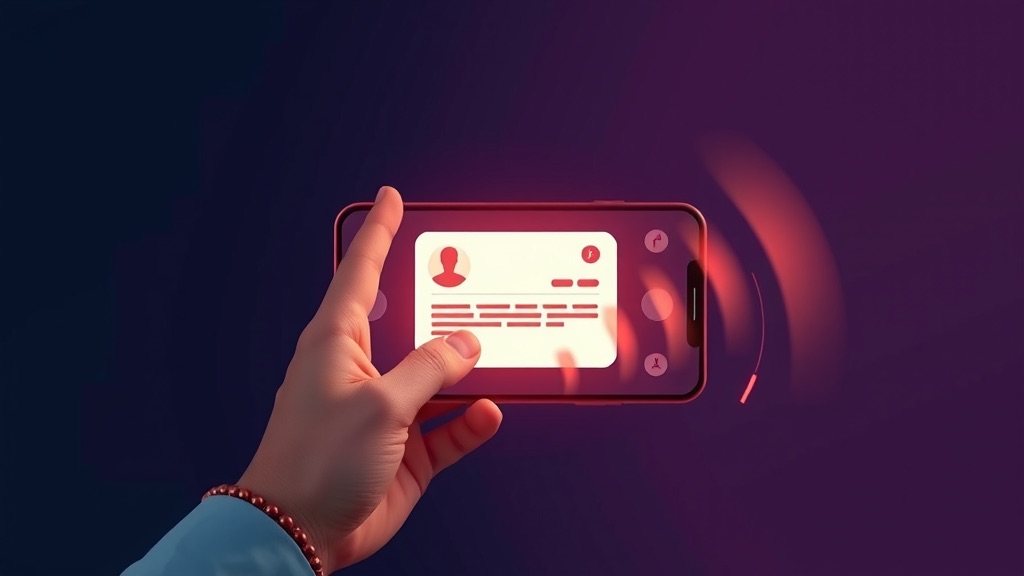
A digital business card is actually two things wearing the same name. One is the Apple Wallet or Google Wallet pass — small, persistent, mostly invisible until the recipient consciously opens it. The other is the landing page that the QR scan or NFC tap actually opens: the full web experience where the recipient sees the cardholder's profile and decides whether to do anything further.
The landing page is where conversion happens. The wallet pass keeps you present on the recipient's phone for months. But the landing page is the engine that converts a single interaction — a tap, a scan — into a saved contact, an installed pass, a CRM entry, and ideally a booked meeting or first sales conversation.
Most professionals using digital business card platforms ignore the landing page entirely. They accept the default template and assume the page is doing its job. It almost never is. The gap between a default template and an optimized page is significant — in terms of wallet pass installs, share-back form completions, and downstream conversions. This article covers what a high-converting landing page actually looks like, what to test, and how to wire it into the rest of the stack.
What the Landing Page Has to Accomplish
Four jobs, in order of importance:
1. Pass the "is this real" test in under three seconds. The recipient just tapped an NFC card or scanned a QR code. They need to confirm in their first glance that the page is professional, branded, and matches the person they just spoke with. If they can't confirm this immediately, they close the tab.
2. Trigger the wallet pass install. Installing your card to Apple Wallet or Google Wallet is the highest-value action the recipient can take. A pass that's installed persists on their phone and updates automatically. A pass that isn't installed means the interaction has the shelf life of a paper card.
3. Capture the recipient's contact information. This is the bridge to CRM and follow-up. Without a share-back form, you have no idea who viewed your card, no way to follow up, and no data for attribution.
4. Drive a primary next action. Booking a meeting, requesting a quote, starting a conversation. The conversion that begins the actual business relationship.
Every element on the page should serve one of these four jobs. Anything that doesn't is friction.
The "Is This Real" Test: First Three Seconds
The first three seconds determine whether the recipient stays or leaves. The visual confirmation that the page is professional and matches the person whose card was just tapped is what holds them.
Elements that must be visible above the fold:
- Cardholder photo. A real photo of the person — not a logo, not a generic avatar. This is the single most important trust signal on the page.
- Name and title. Large, prominent, immediately readable. No clever taglines above the name.
- Company name or brand. Visible, ideally with a company logo.
- Clean visual hierarchy. The most important information should be impossible to miss.
Common mistakes at this stage:
- No photo, or a low-quality/casual photo. Recipients abandon significantly faster.
- A lengthy bio pushed above the name and photo. Bios belong below the fold.
- Excessive design flourishes that slow page load or obscure the identity confirmation.
The Wallet Pass CTA: The Most Important Button on the Page
The "Save to Apple Wallet" / "Save to Google Wallet" button is the highest-value CTA on the page. Most platform templates place it in a secondary position. It should be primary — visible immediately, above the fold.
Best practices:
- Auto-detect device. Show "Save to Apple Wallet" on iPhone, "Save to Google Wallet" on Android. One tap, no choice required. Presenting both options on all devices adds friction without benefit.
- Use Apple's and Google's official button designs. Recipients recognize the branding immediately. Custom-designed "save" buttons look less trustworthy.
- Position above the fold on mobile. If the recipient has to scroll to find it, a significant share won't scroll.
- Add one line of context. Something like: "Save my card — it updates automatically if I change companies."
Exact conversion rates for wallet pass installs vary by audience, industry, and platform — published benchmarks are scarce and platform-specific claims should be treated as approximations. What's consistent is that placement matters more than almost any other factor: above-fold placement reliably outperforms below-fold placement by a meaningful margin.
Note: not every digital business card platform supports wallet pass distribution. If this is a priority, verify implementation quality during your trial — including what a Google Wallet pass actually looks like on Android, not just the Apple version.
The Share-Back Form: The Bridge to CRM
The share-back form is where the recipient exchanges their contact information for the cardholder's full vCard or contact details. This is the data that flows into the CRM and starts the follow-up sequence.
Best practices:
- Keep it short. Name and email is the right default for first-touch capture. Forms with more than three required fields see measurable drop-off.
- Frame it as an exchange. "Get my full contact info" is the right framing. "Join my mailing list" is the wrong one.
- Be specific about the deliverable. What does the recipient receive after submitting? A vCard download, a contact confirmation email, access to your network? Specify.
- Position it prominently — below the wallet pass CTA but still visible without scrolling on most mobile screens.
- Show a privacy line for GDPR-compliant deployments: a one-line note and checkbox for EU contacts.
Submission rates vary considerably based on context, audience, and how well the form is positioned and framed. The most consistent finding: form length is the primary lever. Cut fields before optimizing anything else.
The Primary Action CTA: One Clear Next Step
Beyond the wallet pass and share-back form, the page should drive one clear primary action. This should match the cardholder's conversion goal:
- Sales professional: "Book a discovery call" → Calendly
- Real estate agent: "Get a home valuation" → quote form
- Coach or consultant: "Schedule a free intro session" → booking link
- Founder: "See our deck" → DocSend or Pitch
- Restaurant or local business: "Make a reservation" → OpenTable or Resy
- Freelancer: "See my portfolio" → case studies
This CTA should be visually distinct from the wallet pass and share-back CTAs — a different color or weight, signaling that it's the next-step option rather than the immediate action. Keep it to one.
Secondary Elements: Supporting the Curious Recipient
Below the primary action, the page can include material for recipients who want to dig deeper:
- Social and professional links. Use recognizable icons for LinkedIn, Instagram, X/Twitter, GitHub. Icon-based links scan faster than text links.
- Press mentions or notable features. "As featured in..." with logos. Significant credibility signal for founders and public-facing professionals.
- Testimonials. Two or three short quotes with names and roles. Skip if the testimonials aren't strong — weak social proof is worse than none.
- Video introduction. Sixty seconds or less. Effective for roles where personality and communication style matter (sales, coaching, creative work).
- Service or specialty list. A short bulleted list of what you offer. Quick to scan, useful for recipients who need to understand your scope.
Nothing below the primary action should be required reading. It's supporting material for the already-interested recipient.
Mobile Optimization: Not Optional
A digital business card landing page is opened on mobile the vast majority of the time. Mobile optimization isn't a refinement — it's the baseline.
Non-negotiable mobile requirements:
- Single-column layout. No side-by-side elements that collapse awkwardly.
- Large tap targets. Buttons should be at least 44px tall — Apple's recommended minimum for touchscreen interaction.
- Sub-2-second load time on mobile networks. Pages that load slowly lose a substantial share of visitors before anything renders.
- No modal pop-ups. Cookie consent banners, newsletter modals, and other pop-ups are brutal on mobile and kill conversion. Skip them on the card landing page if at all possible.
- Compressed images in modern formats. WebP or AVIF, sized appropriately for mobile viewports.
Test your page on an actual phone — both iPhone and Android — not just in a browser's device emulation mode. Emulation misses real-world quirks.
If You'd Rather Skip the Optimization Work Entirely
If tinkering with landing page templates sounds like the opposite of how you want to spend your time, there's a different approach: use a platform that treats the landing page as a finished, optimized product rather than a configurable blank. BizBuzz Cards offers 10 one-page mini-site templates that are pre-built for the mobile-first, share-and-save workflow — the layout decisions and CTA placement are done, and the templates have been designed for the use case rather than adapted from a generic web builder. It's not a DIY optimization tool; it's closer to a finished product. Trade-off: less flexibility, but also less work.
The Integration Layer: Wallet, NFC, and CRM
Apple Wallet: The "Save to Apple Wallet" button fires the .pkpass install flow. The pass is generated server-side with the cardholder's current information and updates are pushed via Apple Push Notification Service when information changes.
Google Wallet: The equivalent button fires the Google Wallet API flow — a signed JWT delivers the pass to the recipient's Android device. Updates push through the same API. (Documentation: developers.google.com/wallet.)
NFC: The landing page URL is what gets written to the NFC chip. The page experience must be optimized for this entry path specifically — fast load, immediate trust signals, prominent wallet CTA. A tapped chip is a high-intent interaction; don't lose it to a slow page.
CRM: Every share-back form submission should fire a webhook into the cardholder's CRM. The event should carry the recipient's contact details, the source context (which event, QR vs. NFC, referral source), geolocation if available, and a timestamp. The CRM uses this data to route the lead, trigger follow-up sequences, and attribute pipeline.
A/B Testing the Page
The fastest path to an optimized landing page is structured testing. Test in this order:
- Wallet pass CTA position and copy — above-fold vs. mid-page; "Save to Apple Wallet" vs. "Add my card" vs. "Save to your phone"
- Share-back form length — 2 fields vs. 3 vs. 5
- Primary action CTA copy — exact wording of your booking or contact CTA
- Headshot style — professional studio vs. candid professional vs. action shot
- One-line value proposition — different framings of what you do and for whom
Most card platforms don't natively support A/B testing. Workaround: use a redirect tool (Rebrandly, PrettyLinks, or a simple link rotator) to split traffic between two variants and compare CRM conversion data downstream.
Common Mistakes
Default template with no customization. The platform's default is never optimized for your specific audience. At minimum, customize the photo, headline, button layout, and primary CTA.
Too many primary actions. A page with five "primary" actions has effectively zero primary actions. Pick one.
No share-back form. A page that doesn't capture the recipient's contact information is a dead end. The wallet pass alone doesn't generate CRM data or enable follow-up.
No analytics. A page without scan tracking and click attribution gives you no signal for improvement. Make sure your platform provides at least basic view and click data.
Slow load on mobile. Any page that takes more than three seconds to load on a typical mobile connection loses a meaningful share of visitors before anything renders.
Designed on desktop, untested on mobile. The mobile experience is what matters. Test it on a phone.
Bottom Line
The digital business card landing page is where conversion actually happens. The wallet pass, NFC card, and CRM integration are the supporting infrastructure. The landing page is the engine.
Optimize for the four jobs: pass the trust test in three seconds, trigger the wallet pass install, capture the recipient's information in a short share-back form, and drive one clear primary action. Build it mobile-first, keep it fast, test what matters.
A well-optimized page converts substantially better than a default template — and for professionals running serious networking volume, that difference compounds into significantly more pipeline and meaningful relationships per quarter.
Sources
- Google Wallet API documentation: https://developers.google.com/wallet
- Apple PassKit and Wallet pass distribution: https://developer.apple.com/documentation/passkit/pkpass
- Apple Human Interface Guidelines (tap target sizing): https://developer.apple.com/design/human-interface-guidelines/buttons
- WebP image format (Google Developers): https://developers.google.com/speed/webp
- Calendly scheduling: https://calendly.com/
- Cal.com open-source scheduling: https://cal.com/
Make one of your own
Build a digital business card in a few minutes and share it anywhere — no app required on the other end.
Create free card →Keep reading

Digital Business Card Trends 2026: Where the Category Is Heading
Digital Business Card Lead Capture: How to Convert Taps into Pipeline

Digital Business Card Trends: What the Next Decade Looks Like