NFC Business Card Compatibility Guide: Which Phones Read Which Cards in 2026


Or skip the chip shopping
A BizBuzz card arrives with the right chip already encoded.
Before you hand out your card, here's the complete guide to which iPhones and Androids read NFC in 2026 — including the edge cases and how Wallet integration fills the gaps.
Will this card work with everyone's phone? It's the question every professional asks before investing in NFC business cards. The short answer in 2026: yes, essentially — for any smartphone bought in the last five or six years.
The longer answer is this guide. We'll cover exact iPhone model compatibility, Android hardware variation, specific edge cases worth knowing, and how Apple Wallet and Google Wallet integration makes most of the compatibility question moot anyway.
How NFC Tag Reading Works
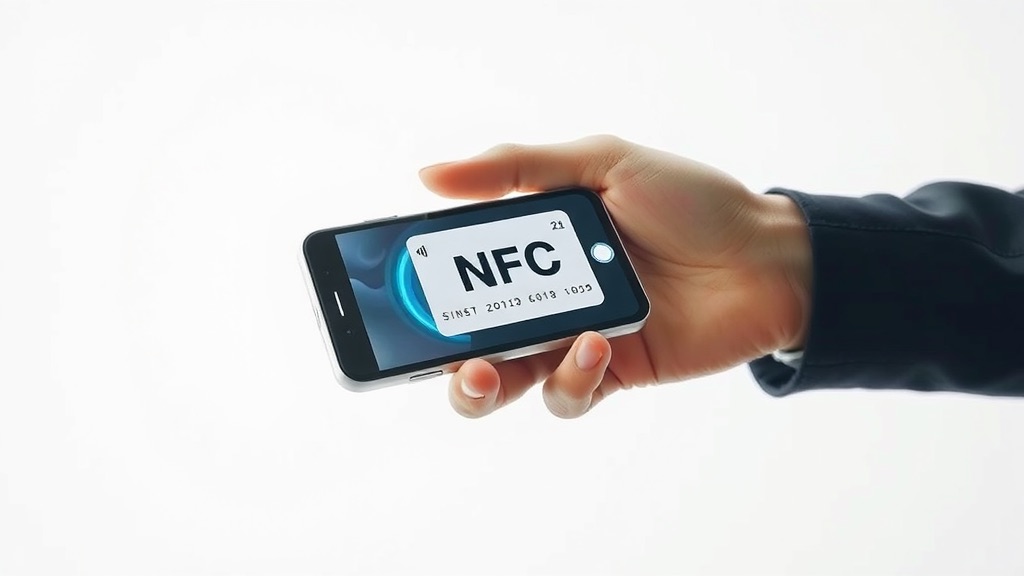
Your NFC business card contains a passive chip that stores a URL. When a compatible smartphone comes within a few centimeters of the chip, the phone's NFC reader energizes the chip via radio waves and reads the stored URL. The phone opens that URL in the default browser.
Tap to browser open: approximately one second on a compatible modern phone. On an incompatible phone (no NFC hardware, or NFC disabled), nothing happens — and your QR code fallback steps in.
iPhone Compatibility: Model by Model
| iPhone Model | Released | NFC Tag Reading | What the Recipient Sees |
|---|---|---|---|
| iPhone 6, 6 Plus, 6s, SE (1st gen) | 2014–2016 | Apple Pay only | Nothing — use QR |
| iPhone 7, 7 Plus, 8, 8 Plus, X | 2016–2017 | Requires NFC reader app | Needs app pre-installed |
| iPhone XS, XR | 2018 | Background reading (iOS 13+) | Automatic notification |
| iPhone 11, SE (2nd gen) | 2019–2020 | Background reading | Automatic notification |
| iPhone 12, 13, 14 | 2020–2022 | Full background + lock screen | Automatic, even when locked |
| iPhone 15, 16, SE (3rd gen) | 2022–2024 | Full background + lock screen | Automatic, even when locked |
The threshold: iPhone XS running iOS 13 or later is the first iPhone where an NFC card produces an automatic banner notification without any app or preparation. Every iPhone released since then has the same capability.
The iPhone XS launched in September 2018. In 2026, most iPhone users are well above this threshold. The pre-XS segment is shrinking rapidly as people replace devices.
Antenna location: Top-back of the iPhone, near the Apple logo. This is the single most common source of "it's not working" — recipients tap the center or bottom of the phone. One sentence of guidance fixes it: "Hold the top of your phone against the card."
Android Compatibility: By Manufacturer
Android has supported NFC tag reading since Android 2.3 (2010). The complications are in budget and mid-range segments:
Samsung
- Galaxy S-series (all): NFC ✓
- Galaxy Z Fold, Z Flip (all): NFC ✓
- Galaxy A-series flagships (A52, A53, A54, A55+): NFC ✓
- Budget A-series (A03, A13 base, A14 base): Varies — check model specs
- Pixel 1 through Pixel 9 (all): NFC ✓
OnePlus
- OnePlus 3 and later: NFC ✓
- OnePlus 2 (2015): No NFC (notable exception)
Xiaomi / Redmi / Poco
- Xiaomi 12, 13, 14 series: NFC ✓
- Redmi Note (EU variants): Usually NFC ✓
- Redmi Note (India/Asia variants): Often no NFC — same model name, different hardware
- Poco X5 Pro, Poco F5 and above: NFC ✓
- Entry Poco/Redmi: Frequently no NFC
Motorola
- Moto Edge series: NFC ✓
- Moto G Power, Moto G Stylus: Varies by generation — check specs
- Moto E series: Generally no NFC
Huawei (post-2019)
- NFC hardware: Present ✓
- Google Wallet: Unavailable (no Google Mobile Services post US trade restrictions)
- Practical path for recipients: QR code or direct URL
Others
- Sony Xperia (flagship and mid-range): NFC ✓
- Nothing Phone (1), (2), (2a): NFC ✓
- Asus Zenfone series: NFC ✓
Quick check for any Android: Settings → Connected Devices → Connection Preferences → NFC. If the toggle is there, NFC works. If it's absent, the hardware isn't present.
Realistic Compatibility Numbers
For a typical professional networking audience in North America or Western Europe:
- iPhones: ~90%+ of current active iPhones can read NFC cards automatically (XS or later on iOS 13+).
- Android: ~85–90% of active Android devices have NFC, depending on the market. Budget-market audiences in Asia or emerging markets may skew lower.
- Combined: ~90–95% of smartphones your contacts carry will tap your card successfully.
The QR code fallback covers the remaining 5–10% without losing those contacts.
Fallback Architecture: Covering Every Case
A well-designed NFC business card setup provides multiple paths to the same destination:
Primary: NFC tap → URL opens in browser → Digital profile loads
Fallback 1: QR code scan (any camera app) → Same URL → Same profile
Fallback 2: Apple Wallet or Google Wallet pass → Card accessible from Wallet app
Fallback 3: Short URL printed on card → Manual entry in browser
Good platforms (HiHello, Mobilo, Popl, Blinq, Wave Connect) generate all of these from a single profile. You configure once; the fallbacks exist automatically.
Apple Wallet: The iPhone Compatibility Cheat Code
Once you've added your card to Apple Wallet, iPhone compatibility gaps become nearly irrelevant. From your Wallet pass, you can:
- NFC tap your phone to any NFC-enabled device (iPhone or Android)
- Display the QR code built into the pass
- Share via AirDrop to any nearby iPhone
- Send the URL via iMessage, email, or any app
- Show the pass visually for manual note-taking
The Apple Wallet pass doesn't require the recipient to have a compatible NFC phone. A camera for the QR or connectivity for a URL is all they need.
Setup: Open your digital card profile on your iPhone → Add to Apple Wallet → Confirm. Under two minutes.
Google Wallet: The Android Equivalent
Same story on Android. Once your card is in Google Wallet:
- NFC tap your phone to share
- Display the QR from within the Wallet app
- Quick Access: Most modern Androids let you swipe up from the lock screen to access Wallet — share your card from a locked phone
- Share via any Android intent: Messages, WhatsApp, email, anything
Google Wallet is built on the Google Wallet API. Your digital card platform generates the pass format; you tap "Save to Google Wallet" on your profile page.
Huawei caveat: Google Wallet unavailable on post-2019 Huawei without Google Mobile Services. QR code is the path for these users.
Edge Cases and How to Handle Them
Recipient's phone is in Airplane Mode:
NFC reading works (it's separate from cellular and Wi-Fi), but the URL won't load. Ask them to disable airplane mode, or send the URL via message later.
Metal phone case blocking NFC:
Thick metal cases can block the NFC signal. If the tap fails, ask them to remove the case. This is more common than you'd expect with "protective armor" style cases.
Screen fully off on iPhone:
iPhone needs the screen illuminated (not unlocked, but lit) for background NFC reading. A brief side button press wakes the screen; the tap then works.
Multiple NFC cards stacked:
If your card is buried in a stack of NFC cards, the phone may detect multiple simultaneous signals and fail to read any of them. Separate cards by at least 3–4 cm.
NFC disabled in Android settings:
Some users disable NFC to extend battery life. The tap does nothing. Ask them to check Settings → NFC and enable it — or use the QR code.
Older Xiaomi MIUI firmware:
Some 2019–2021 Xiaomi devices running older MIUI had unreliable NFC tag reading. Updated firmware is usually fine; older versions may not auto-open URLs. QR fallback.
Testing Protocol Before Key Events
Run this before any conference or client meeting:
- Modern iPhone (15 or 14, iOS 17): Tap card to upper-back → notification should appear automatically
- iPhone XS or 11 (iOS 16): Same test
- Samsung Galaxy (S23 or S24): Tap card to center-back → Chrome should open directly
- Google Pixel (7 or 8): Same as Samsung
- QR code test: Open Camera app → frame QR on card back → URL should appear in 1–2 seconds
- Apple Wallet pass: Open Wallet → verify correct info → test QR within the pass
- Google Wallet pass: Open Google Wallet → verify → test Quick Access from lock screen
If anything fails during testing, you have time to fix it. Discovering a misconfigured card mid-pitch is not the impression you want to make.
Platform Compatibility Summary
| Platform | Apple Wallet | Google Wallet | QR Fallback | HubSpot Integration |
|---|---|---|---|---|
| Popl | ✓ | ✓ | ✓ | ✓ (Pro+) |
| HiHello | ✓ | ✓ | ✓ | Via Zapier |
| Mobilo | ✓ | ✓ | ✓ | ✓ (paid) |
| Blinq | ✓ | ✓ | ✓ | Paid tier |
| Wave Connect | ✓ | ✓ | ✓ | ✓ |
All major platforms generate QR codes and Wallet passes. Differences lie in CRM integration depth, analytics granularity, and physical card material options.
The App-First Option: Skip Hardware Entirely
If NFC hardware compatibility feels like too many variables to manage, there's a clean alternative: go app-first and sidestep the hardware question entirely.
BizBuzz Cards is a digital business card app built around QR codes and deep links — no NFC hardware required, compatible with any phone that has a camera or a browser. When contacts save your card, they're logged in BizBuzz's built-in network CRM. And BizBuzz's AI semantic search means the people you meet are genuinely findable months later — not buried in a contact list, but surfaceable by what they told you. Free tier supports 1 card; paid tiers unlock unlimited cards, publishable mini-sites, unlimited AI search, and network insights.
Want a physical NFC touchpoint anyway? Write your BizBuzz link to a blank NFC sticker for under $1 using NFC Tools. Compatibility problem solved for the price of a cup of coffee.
The Bottom Line
NFC business card compatibility in 2026 is a solved problem for mainstream smartphones. The edge cases (pre-2018 iPhones, budget Androids without NFC, Huawei devices) are real but manageable with a QR code fallback. Apple Wallet and Google Wallet integration adds another layer of redundancy that makes compatibility concerns nearly irrelevant for the recipient — they can save your card from your Wallet pass regardless of whether their specific phone model read your physical card cleanly.
The real question isn't "will it work?" but "have I set up the fallbacks?" NFC + QR + Apple Wallet + Google Wallet + short URL covers every realistic scenario. Configure all of it, test before important events, and trust the technology.
Sources
- Apple Core NFC background tag reading documentation: https://developer.apple.com/documentation/corenfc/adding-support-for-background-tag-reading
- NFC Tag Ify — iOS 13 NFC features overview: https://nfctagify.com/blogs/news/everything-you-need-to-know-about-the-new-nfc-features-on-ios-13
- GoToTags iOS background NFC reading guide: https://gototags.com/help/ios/nfc/reading/background
- NXP NTAG 213/215/216 specifications: https://www.nxp.com/products/rfid-nfc/nfc-hf/ntag/ntag-for-tags-labels/ntag-213-215-216-nfc-forum-type-2-tag-compliant-ic-with-144-504-888-bytes-user-memory:NTAG213_215_216
- Google Wallet Passes API: https://developers.google.com/wallet/generic
- OnePlus 3 NFC specs (GSMArena): https://www.gsmarena.com/oneplus_3-7995.php
- Seritag — Apple NFC background reading history: https://seritag.com/news/apple-adds-iphone-background-nfc-tag-reading-in-core-nfc
We already did this part
BizBuzz cards ship with the right chip and a hosted profile behind it — no sourcing NFC tags or writing URLs to them yourself.
Get a card →